Enrolment at HNC takes place online on GCSE results day (Thursday 20 August). Applicants are asked to upload a copy of their GCSE results by 4:30pm to guarantee that we will be able to review their enrolment. Any results received after this deadline will not be reviewed and the application will be automatically withdrawn – so it is essential that you complete the enrolment processes outlined below.
For most students, enrolment will be a straight forward process, but we ask that all applicants are available by telephone so that we can call you if we have any questions until Thursday 28 August. If you did not meet the published entry criteria for your chosen study programme, or you would like to request a course change, there will be an opportunity for you to speak to a member of the Admissions team.
Before submitting your results using the button below, we recommend reviewing the step by step guide below.
STEP 1
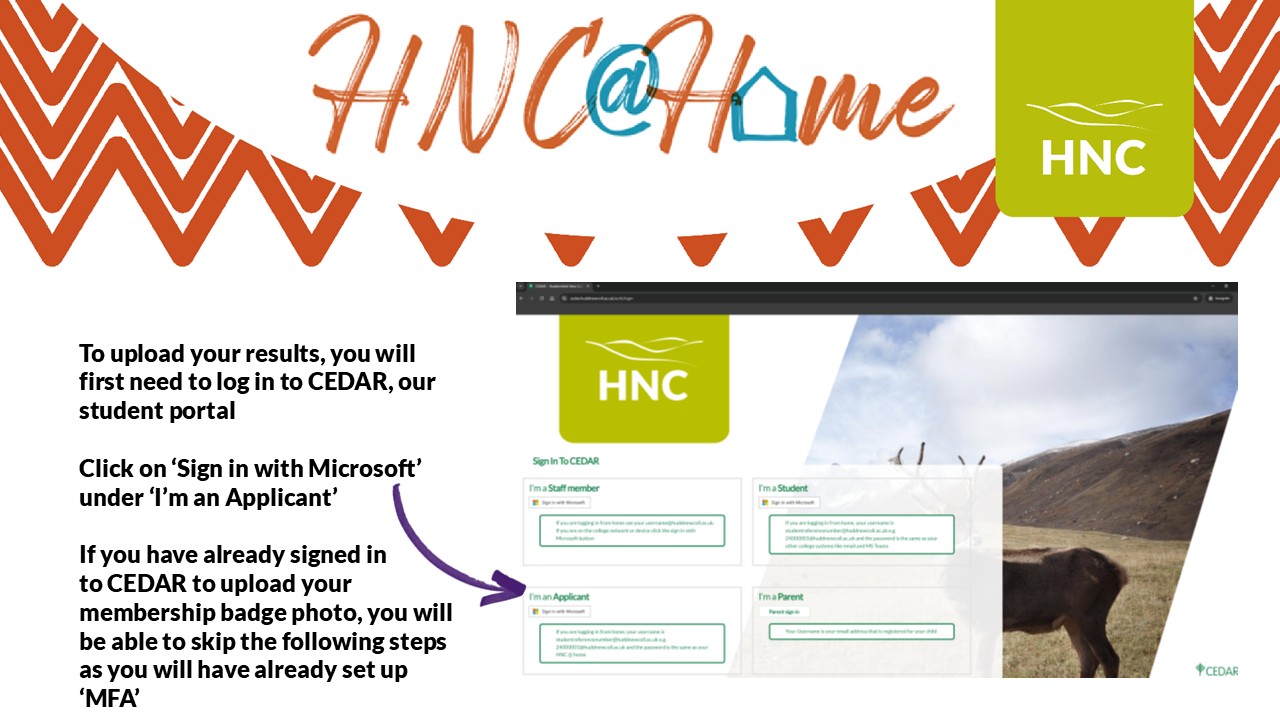
To upload your results, you will first need to log in to CEDAR, our student portal
Click on ‘Sign in with Microsoft’ under ‘I’m an Applicant’
If you have already signed in
to CEDAR to upload your membership badge photo, you will be able to skip the following steps as you will have already set up ‘MFA’
STEP 2
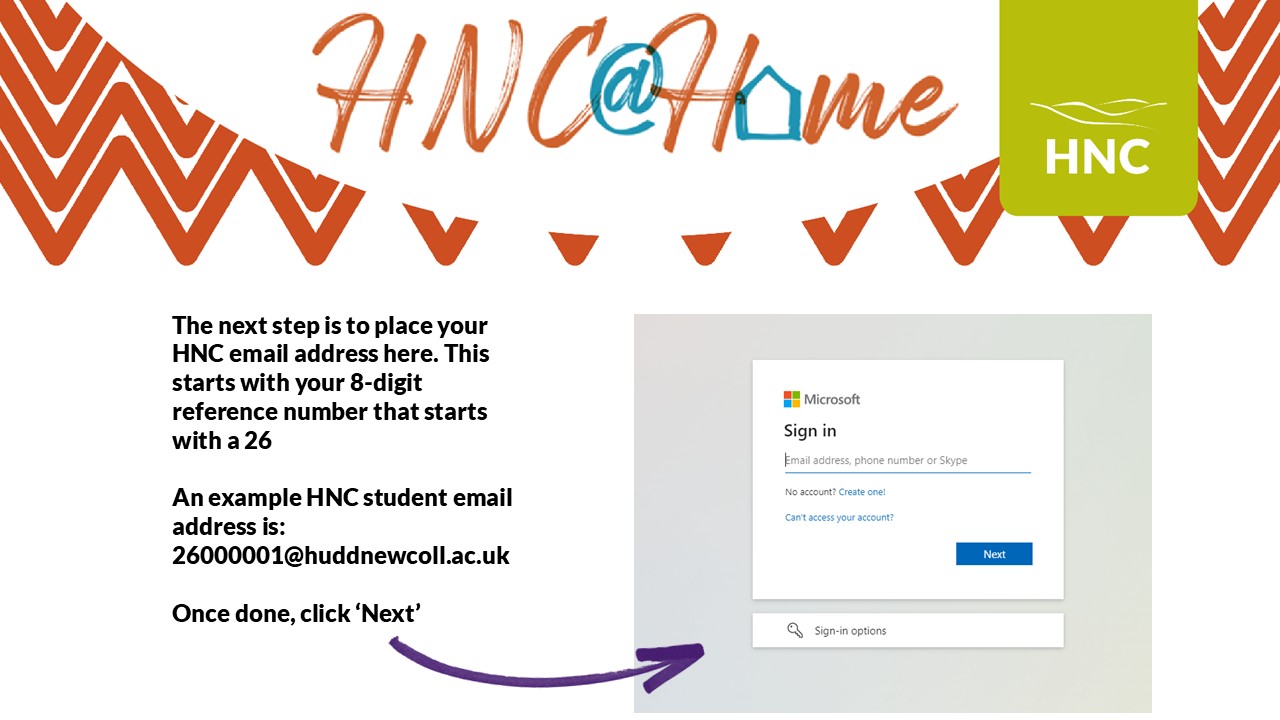
The next step is to place your HNC email address here. This starts with your 8-digit reference number that starts with a 26
An example HNC student email address is: 26000001@huddnewcoll.ac.uk
Once done, click ‘Next’
STEP 3
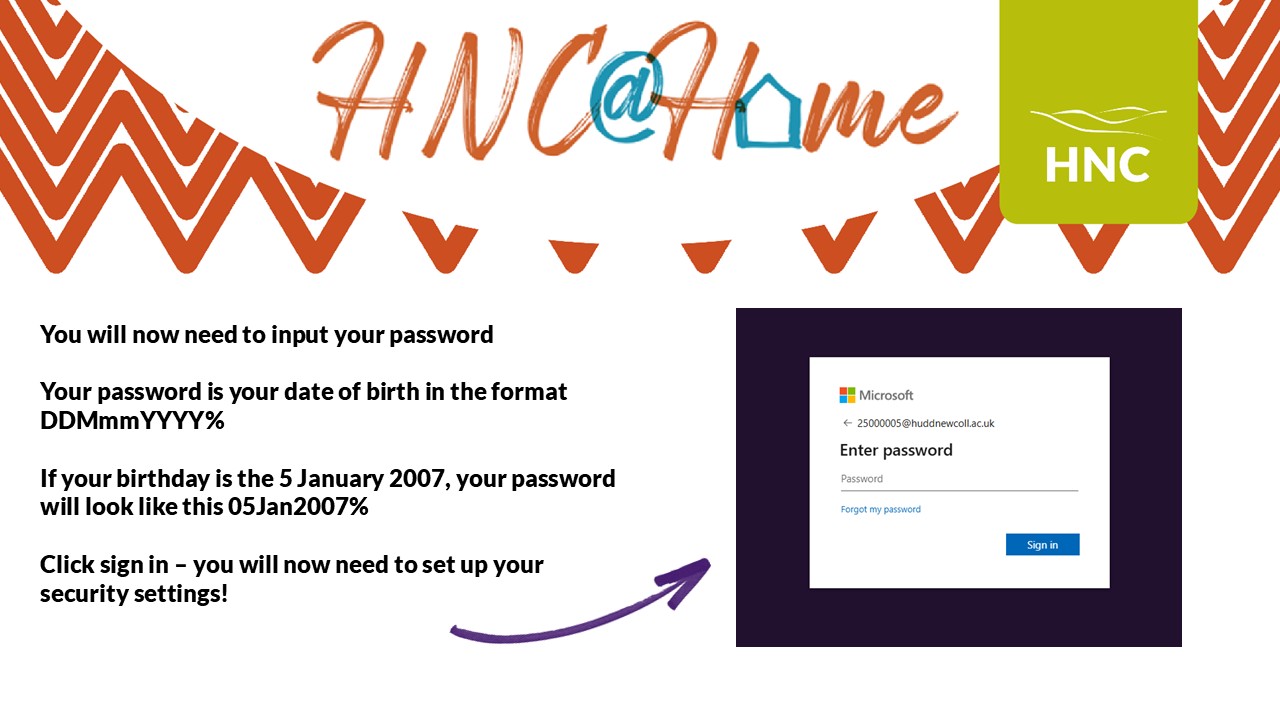
You will now need to input your password
Your password is your date of birth in the format DDMmmYYYY%
If your birthday is the 5 January 2007, your password will look like this 05Jan2007%
Click sign in – you will now need to set up your security settings!
STEP 4
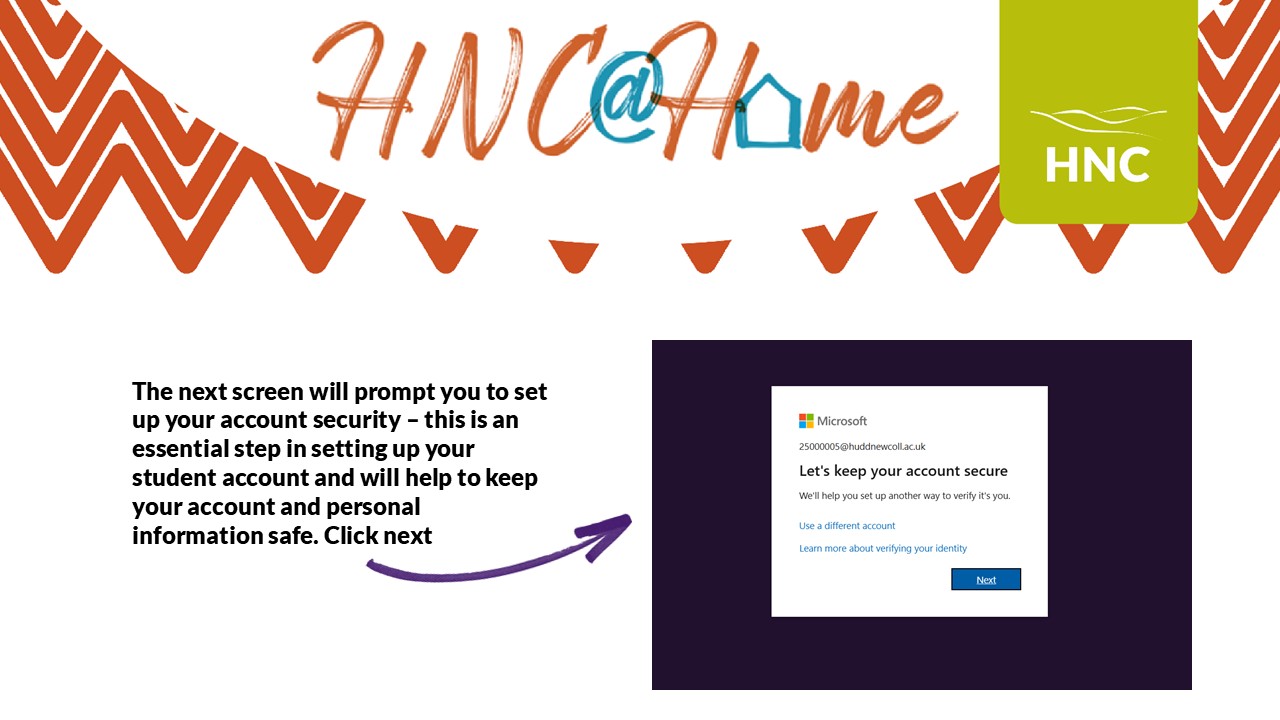
The next screen will prompt you to set up your account security – this is an essential step in setting up your student account and will help to keep your account and personal information safe. Click next.
STEP 5
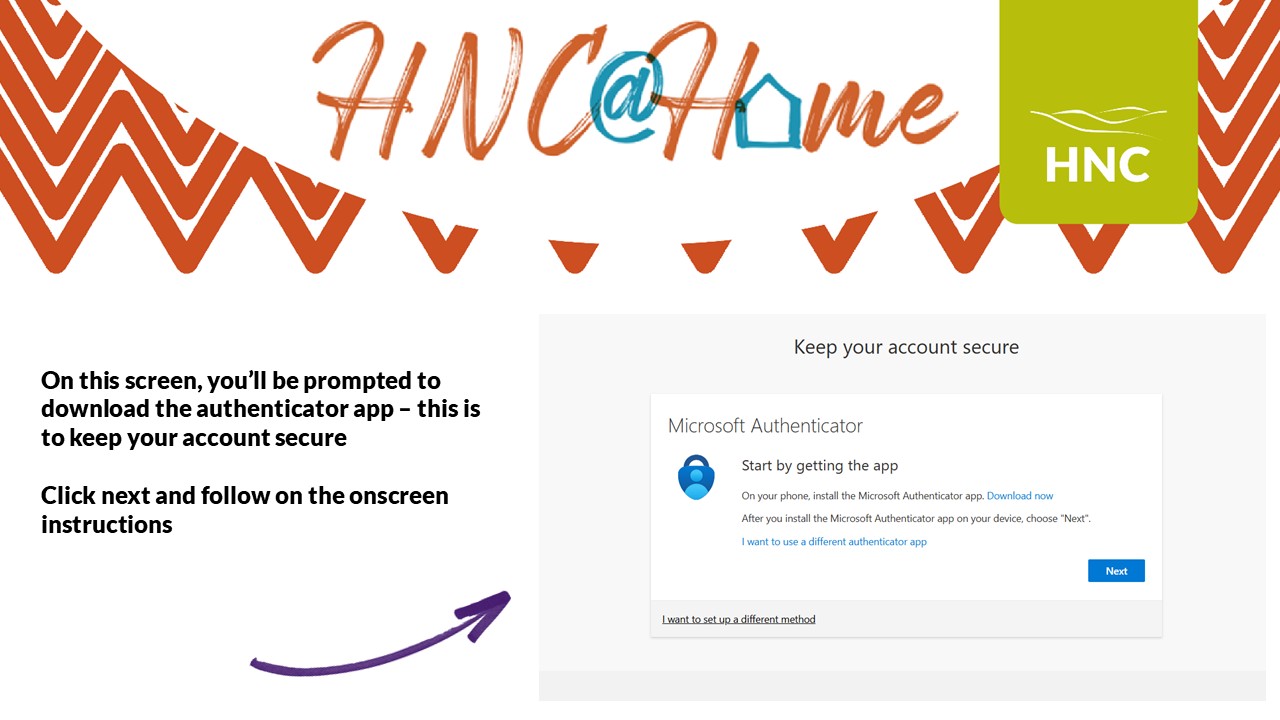
On this screen, you’ll be prompted to download the authenticator app – this is to keep your account secure.
Click next and follow on the onscreen instructions.
STEP 6
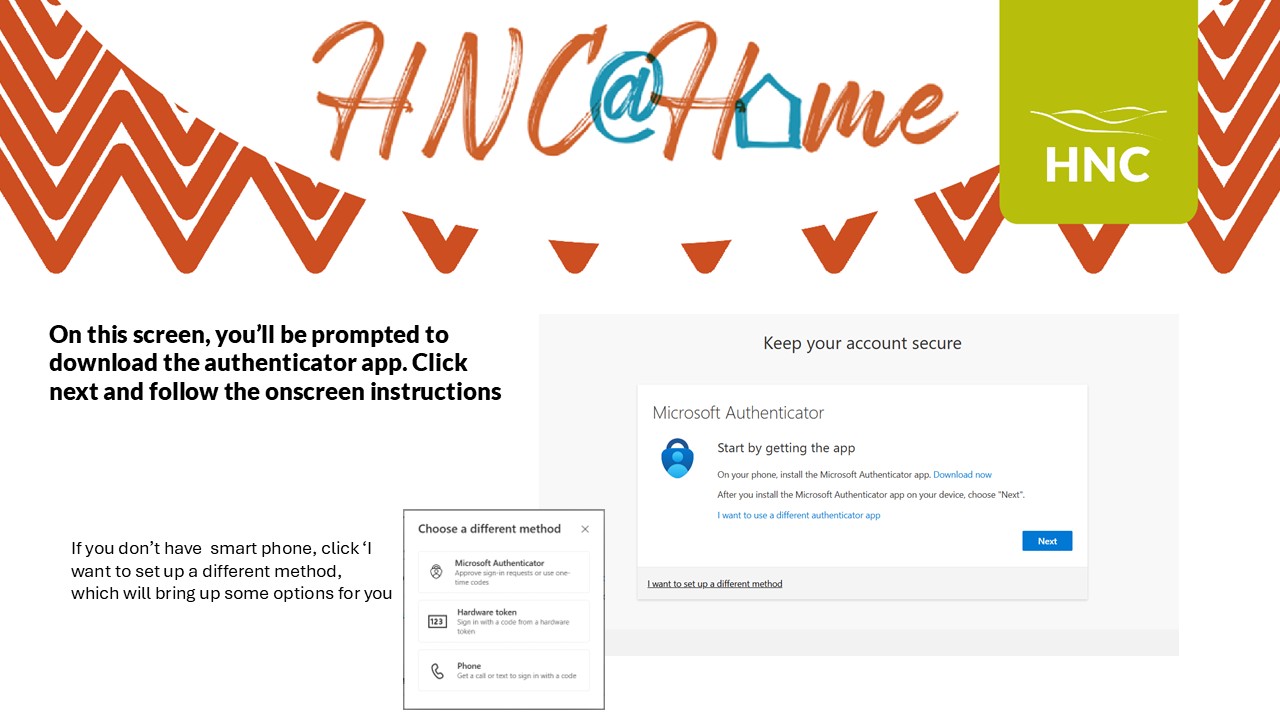
On this screen, you’ll be prompted to download the authenticator app. Click next and follow the onscreen instructions
If you don’t have smart phone, click ‘I want to set up a different method, which will bring up some options for you.
STEP 7
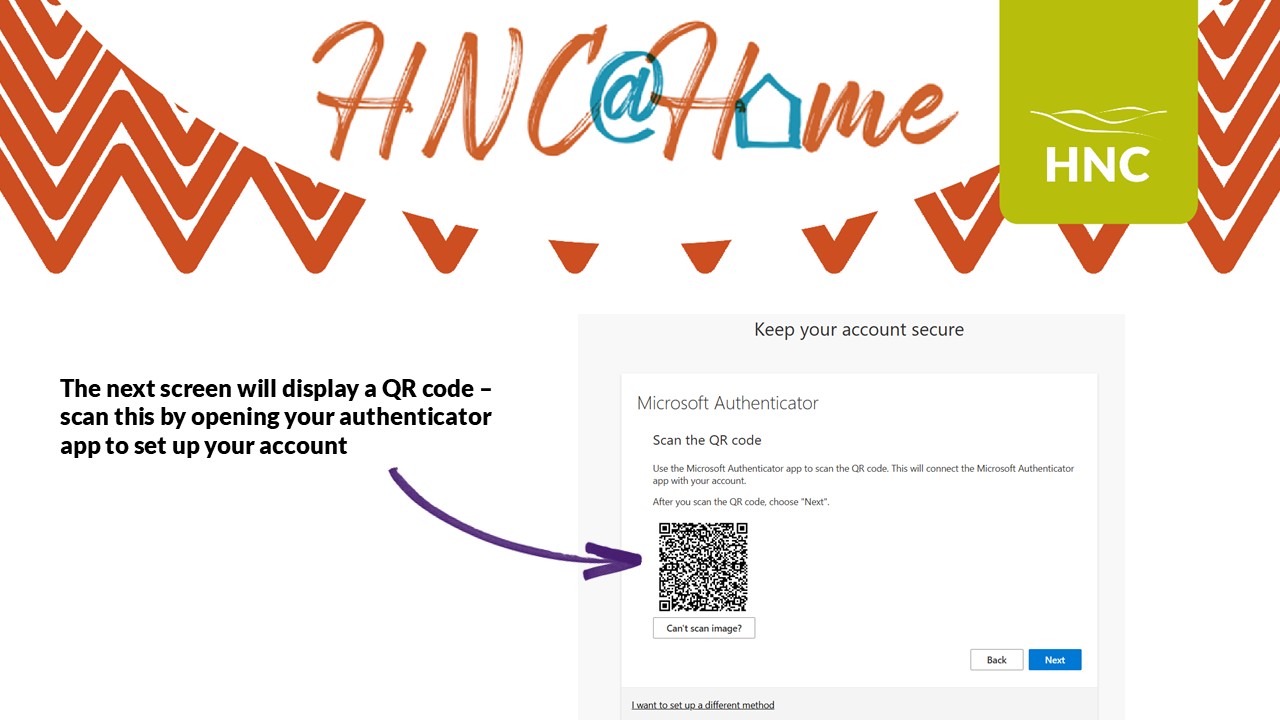
The next screen will display a QR code – scan this by opening your authenticator app to set up your account.
STEP 8
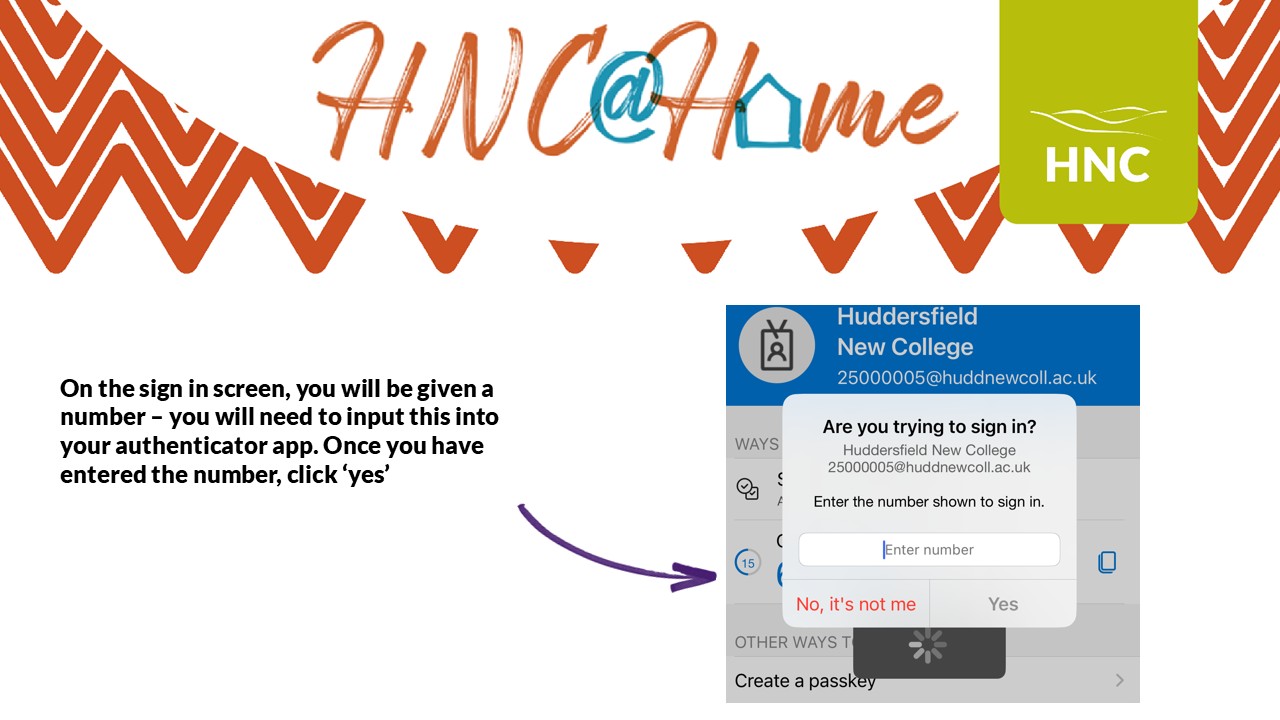
On the sign in screen, you will be given a number – you will need to input this into your authenticator app. Once you have entered the number, click ‘yes’
STEP 9
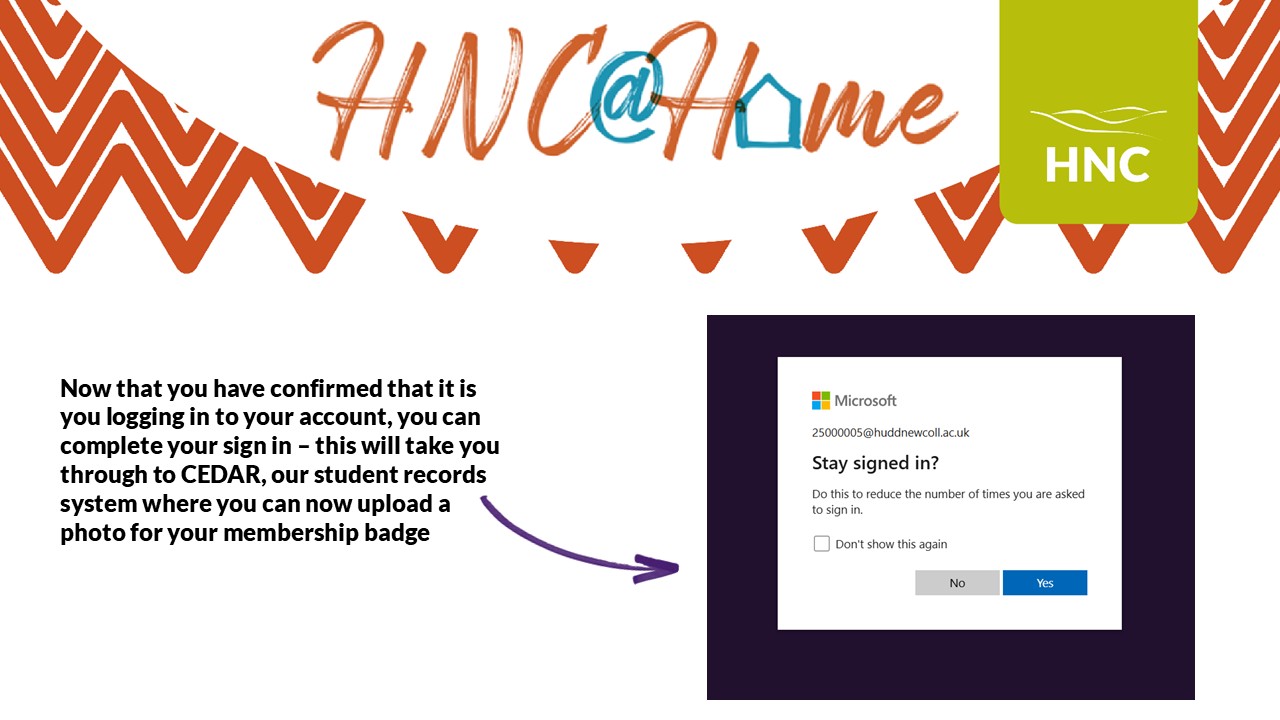
Now that you have confirmed that it is you logging in to your account, you can complete your sign in – this will take you through to CEDAR, our student records system where you can now upload your results
STEP 10
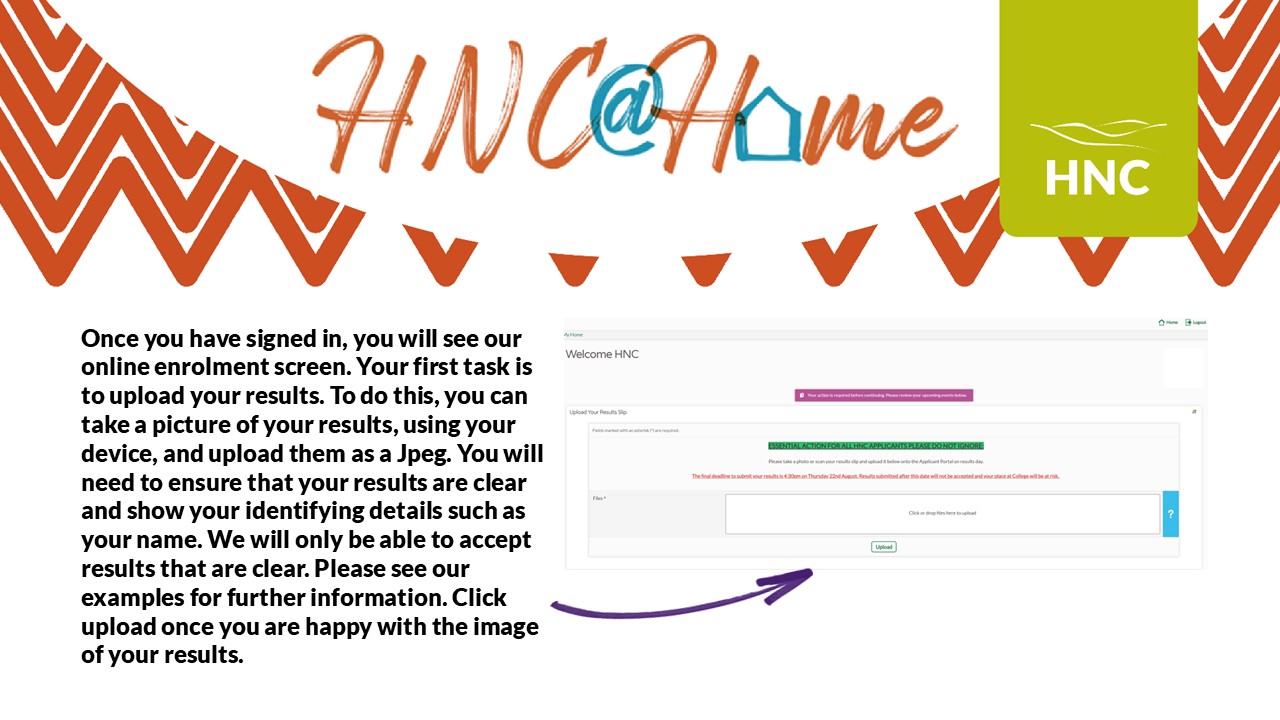
Once you have signed in, you will see our online enrolment screen. Your first task is to upload your results. To do this, you can take a picture of your results, using your device, and upload them as a Jpeg. You will need to ensure that your results are clear and show your identifying details such as your name. We will only be able to accept results that are clear. Please see our examples for further information. Click upload once you are happy with the image of your results.
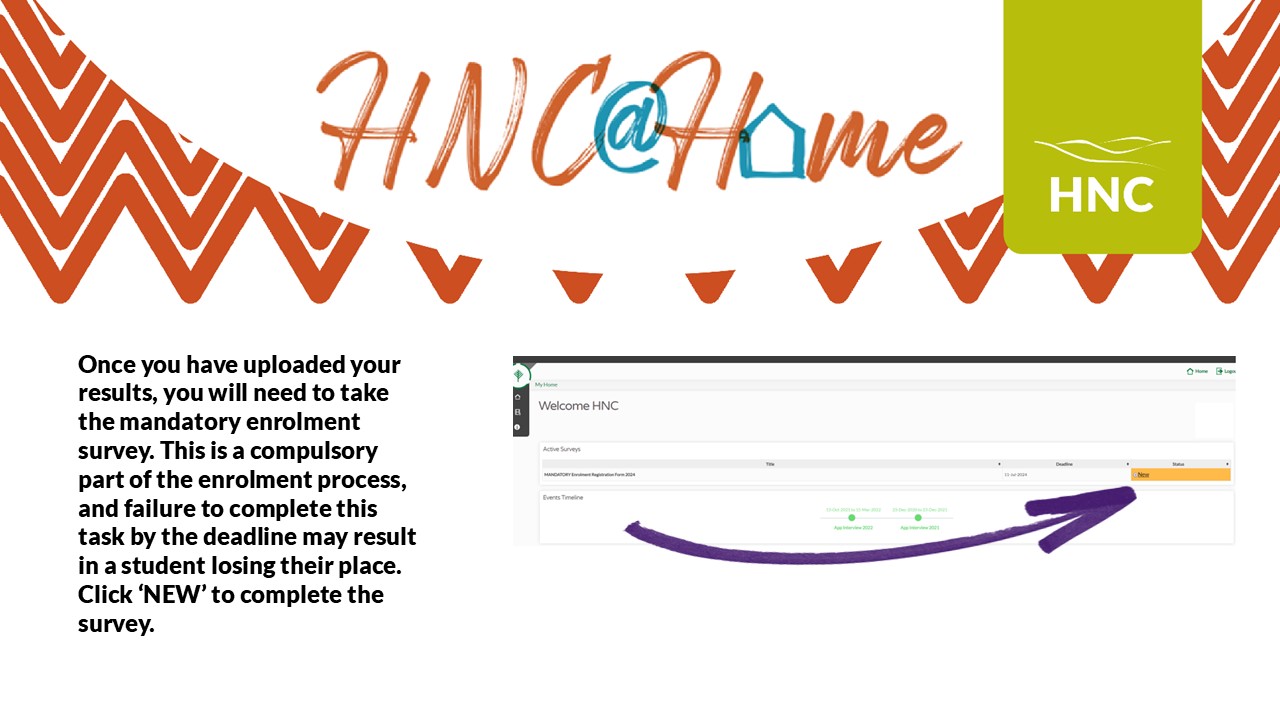
Once you have uploaded your results, you will need to take the mandatory enrolment survey. This is a compulsory part of the enrolment process, and failure to complete this task by the deadline may result in a student losing their place. Click ‘NEW’ to complete the survey.
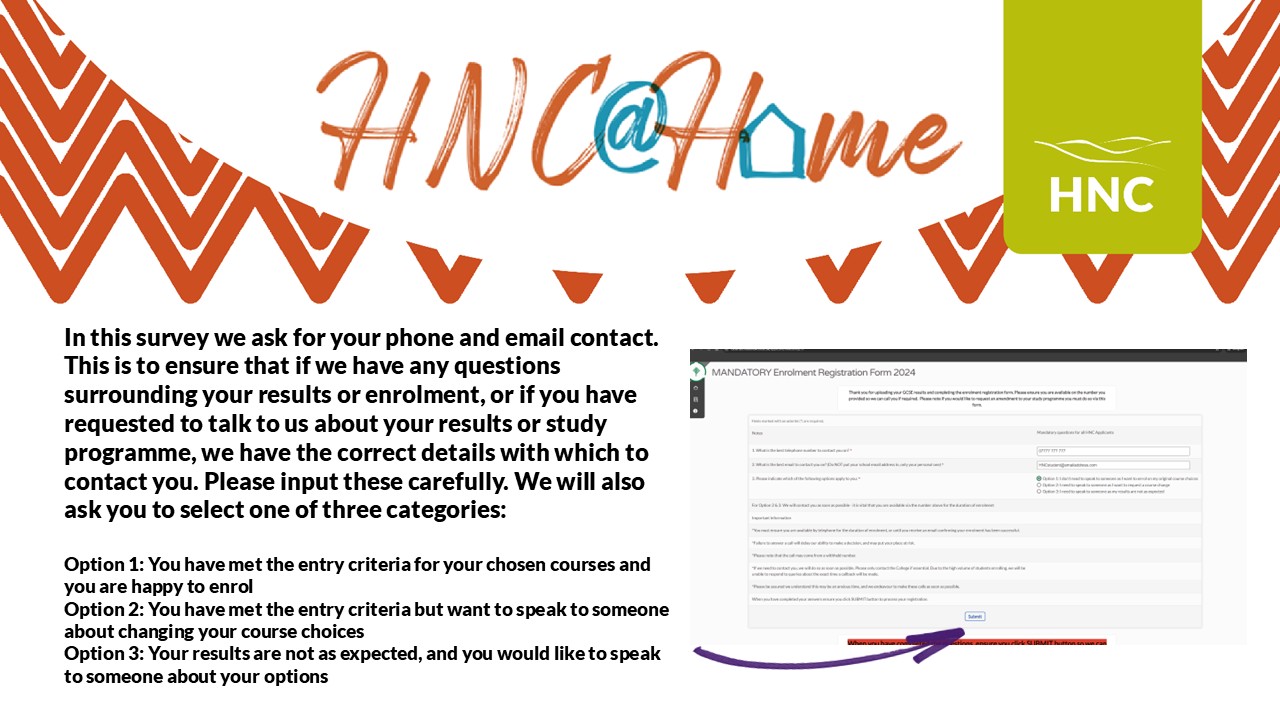
In this survey we ask for your phone and email contact. This is to ensure that if we have any questions surrounding your results or enrolment, or if you have requested to talk to us about your results or study programme, we have the correct details with which to contact you. Please input these carefully. We will also ask you to select one of three categories:
Option 1: You have met the entry criteria for your chosen courses and you are happy to enrol
Option 2: You have met the entry criteria but want to speak to someone about changing your course choices
Option 3: Your results are not as expected, and you would like to speak to someone about your options
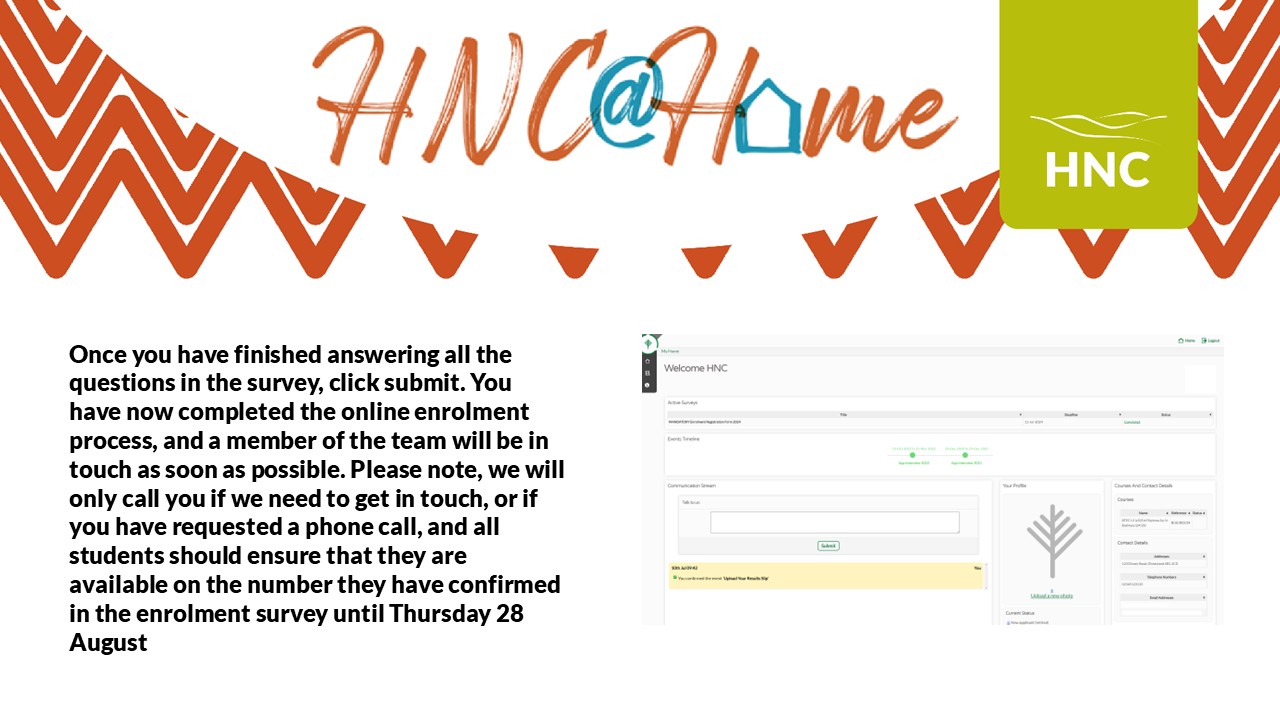
Once you have finished answering all the questions in the survey, click submit. You have now completed the online enrolment process, and a member of the team will be in touch as soon as possible. Please note, we will only call you if we need to get in touch, or if you have requested a phone call, and all students should ensure that they are available on the number they have confirmed in the enrolment survey until Friday 29 August

